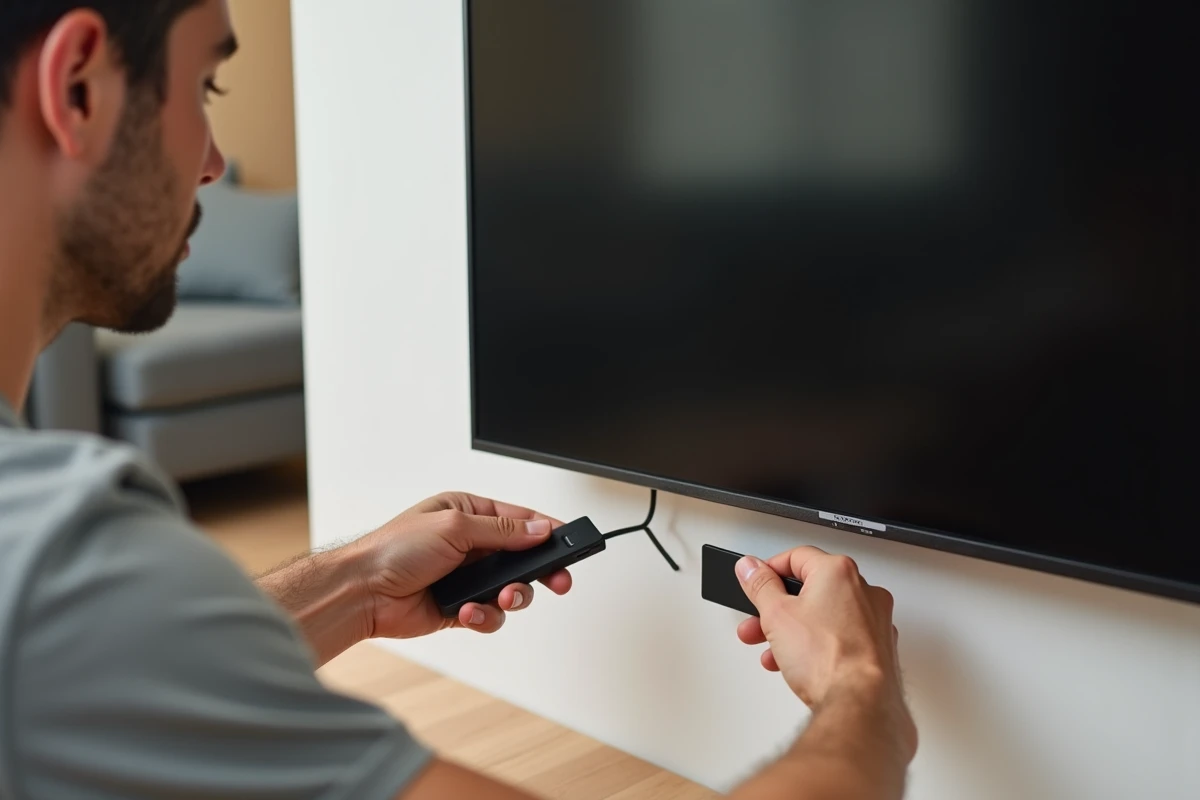
The Xiaomi Mi TV Stick transforms any TV equipped with an HDMI port into an Android TV platform. However, between the physical connection, pairing the remote control, and the settings that condition the daily experience, each step deserves to be understood rather than skimmed over. This guide measures the time and actual prerequisites for each phase of installation.
HDMI-CEC on Mi TV Stick: the setting that the manual doesn’t detail
Most guides stop at the physical connection. They overlook a parameter that changes how the stick is used daily: the HDMI-CEC compatibility of the Mi TV Stick.
Specifically, HDMI-CEC allows the TV to automatically turn on and switch to the correct HDMI input by pressing the Power or Home button on the Xiaomi remote. No more juggling between two remotes to turn on the TV and then select the source.
The commercial name of CEC varies by manufacturer. An explicit guide on how to install the Xiaomi Mi TV Stick reminds you of this step, but here is the correspondence table to know before looking for the option in your TV’s menus:
| TV Brand | HDMI-CEC Name | Typical Location |
|---|---|---|
| Samsung | Anynet+ | Settings > General > External Device Manager |
| Sony | Bravia Sync | Settings > Display and Sound > Audio Output > Bravia Sync |
| LG | Simplink | Settings > General > Simplink (HDMI-CEC) |
| Philips | EasyLink | Settings > General Settings > EasyLink |
| Panasonic | Viera Link | Menu > Setup > Viera Link |
If the automatic power-on doesn’t work after connection, it’s almost always because CEC is disabled by default on the TV side. Enable it, restart the Mi TV Stick, and unified control should take effect.
Connection and pairing of the Xiaomi remote: common blocking points
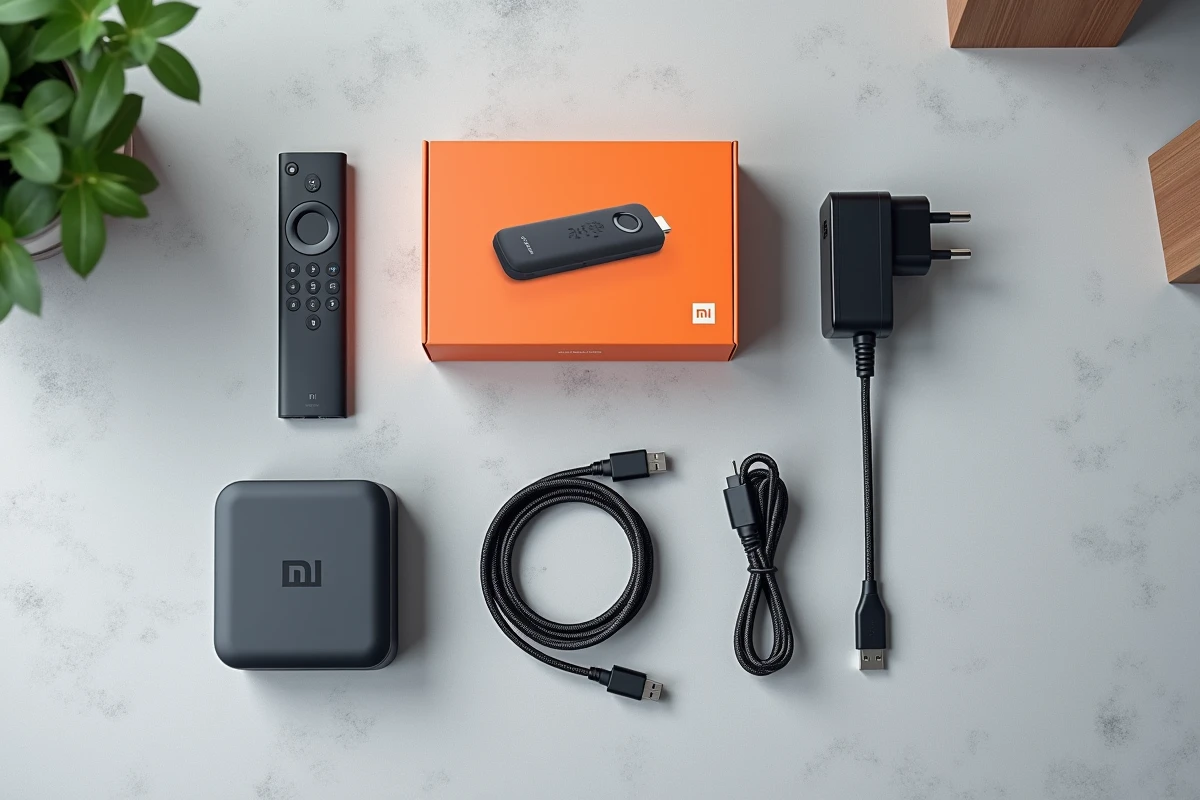
The contents of the box are minimal: the HDMI stick, a Bluetooth remote, a micro-USB cable, and a power adapter. The physical installation poses no difficulty, but two situations regularly create blocks.
Insufficient power via the TV’s USB port
Plugging the power cable into a USB port on the TV rather than the provided power adapter seems logical to reduce cable clutter. In practice, some TV USB ports do not deliver enough power, leading to unexpected restarts or a persistent black screen.
The solution is simple: always use the provided power adapter and a wall outlet. This detail avoids the majority of support tickets related to the instability of the stick.
Bluetooth pairing of the remote
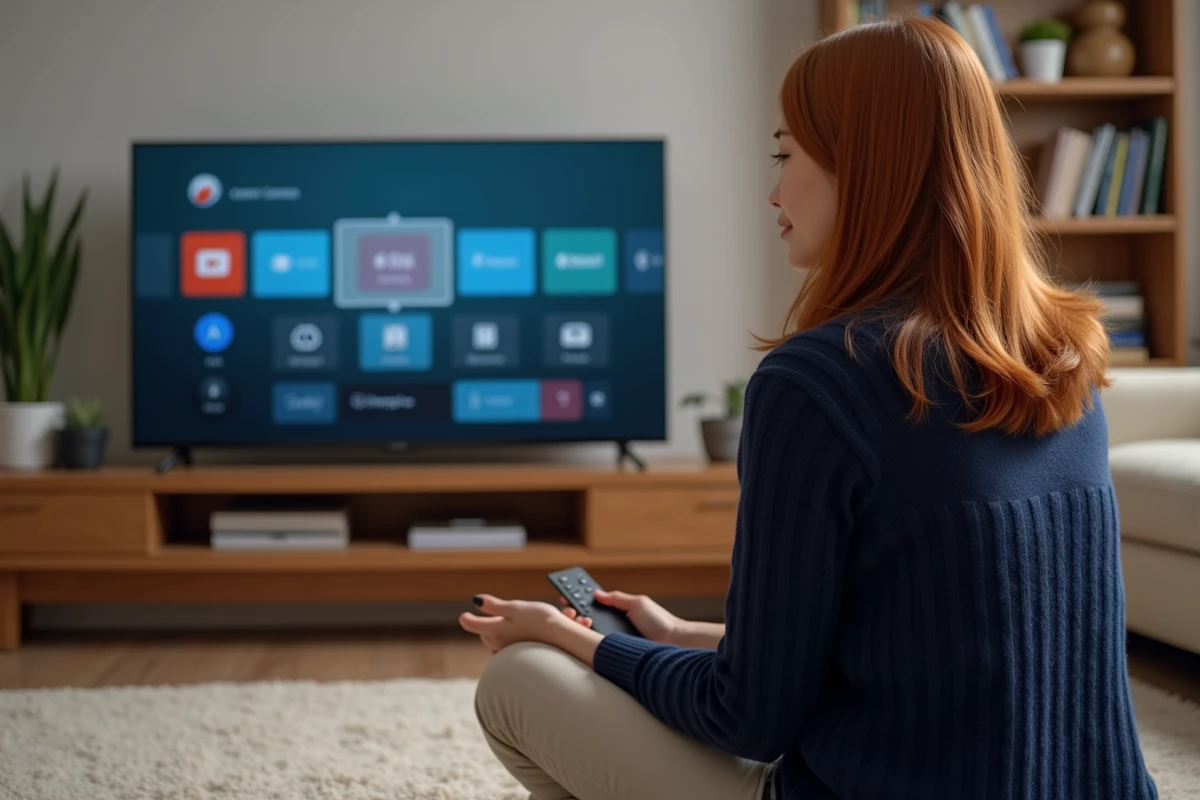
Upon first startup, the screen displays a message asking to pair the remote. The operation consists of holding down the Back and Home buttons simultaneously for a few seconds. If nothing happens:
- Check that two AAA batteries are inserted into the remote (they are not included in the box).
- Bring the remote within one meter of the stick during the pairing phase.
- Unplug and then plug the Mi TV Stick back in to restart Bluetooth detection from the beginning.
Once pairing is successful, the remote remains connected even after a restart.
Wi-Fi connection and Google account: setting up Android TV
The setup assistant asks for two things: a Wi-Fi network and a Google account. The Wi-Fi network is selected in the list displayed on the screen, and the password is entered using the remote (navigating letter by letter).
For internet boxes compatible with WPS, the WPS button allows you to connect the Mi TV Stick to Wi-Fi without entering a password. Press the WPS button on your router, then initiate the WPS connection from the stick’s network settings. The pairing takes a few seconds.
The Google account is necessary to access the Play Store and install applications. If you don’t have one, the assistant offers to create one directly from the TV screen, but entering it via the virtual keyboard is tedious. Preparing the account in advance on a smartphone or computer saves time.
Installing apps outside the Play Store on Mi TV Stick
The Play Store for Android TV does not offer all the applications available on smartphones. To install an APK file (an application not listed on the Store), the procedure has evolved in recent versions of Android TV.
Previously, a simple global switch allowed unknown sources. Now, the permission to install APKs is granted application by application. First, you need to install a file manager or the Downloader app from the Play Store, then specifically grant that app the permission “Install unknown apps” in the security settings.
The steps to follow:
- Open Settings > Devices > Security and Restrictions > Unknown Sources.
- Select the app that will be used to download the APK (Downloader, for example).
- Enable the permission for that app only.
- Launch Downloader, enter the URL of the APK file, download it, and confirm the installation.
This model of permissions by application reduces security risks. Disable the permission once the APK is installed to prevent a third-party app from installing anything without your consent.
Resolution and audio format: check settings after installation
By default, the Mi TV Stick adapts the output resolution to the detected capabilities of the TV. However, the audio format sometimes remains on PCM stereo, even if the TV or connected soundbar supports Dolby Audio.
In Settings > Display and Sound > Audio Output, check that the format matches your equipment. Switching to Dolby or DTS, if your setup allows, significantly improves sound quality on compatible content.
The Mi TV Stick can be set up in about ten minutes when the prerequisites are anticipated: AAA batteries for the remote, power adapter plugged into a wall outlet, CEC enabled on the TV side. The most often overlooked point remains the management of permissions for third-party APKs, which conditions the ability to customize the device beyond the Play Store catalog.